Windows Explored

Everyday Windows Desktop Support, Advanced Troubleshooting & Other OS Tidbits

Some Quick Troubleshooting with IE Developer Debug Tools

Posted by William Diaz on August 29, 2013


I probably spent too much time trying to figure this one out, especially considering I have used the IE Developer Tools (F12) to troubleshoot IE issues in the past, and the fix would have been amazingly fast if I had employed this resource at first. The problem was that a user was unable to view patent images from a website. In the past, this site had used different file formats to send the pages to the browser, such as TIFF. However, regardless of the TIFF viewer application installed, the pages would not render in the browser. Instead there was a red x displayed indicating the image could not be loaded.

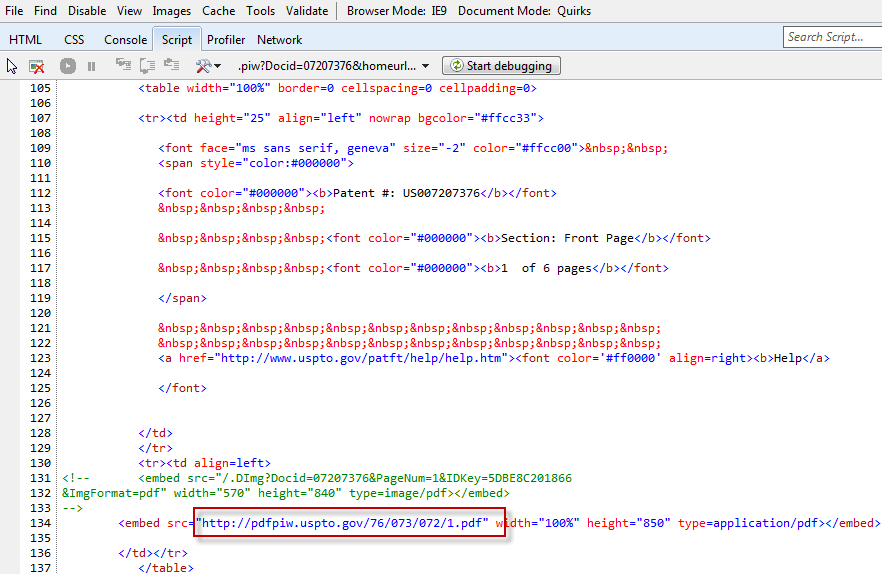
After about half an hour of troubleshooting, I went to F12, selected the Script tab in the Developer tools to see what the javascript wanted to do and saw my answer near the bottom of the script:

image

The webpage was not trying to deliver a TIFF file. Instead, it was wanted to send a PDF. The fix? Change the PDF application (Adobe in this case) to display PDFs in the browser. I also should have avoided listening to the user insisting that the problem was with TIFFs.

Posted in Troubleshooting Tools | Tagged: | Leave a Comment »

Java 7 Domain Account Locks

Posted by William Diaz on August 16, 2013


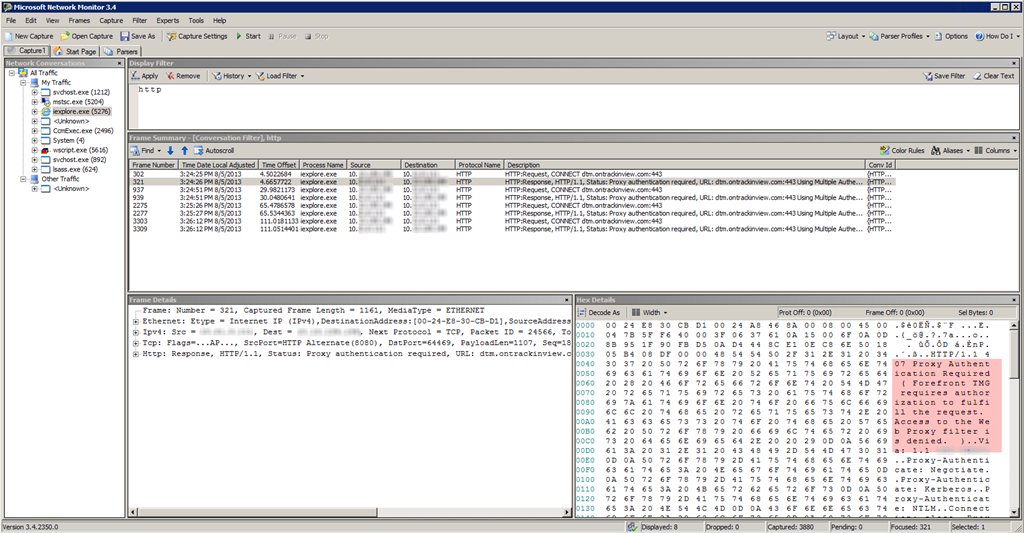
We recently moved from Java 6 to Java 7, specifically JRE 7 Update 25. Immediately, we began get reports of user accounts getting locked after the affected users visited web sites hosting Java applets. For the most parts, the applets would run until the 5th attempt to load-refresh the applet and then the domain account would get locked. The initial look with Network Monitor showed that authenticated users were failing at the proxy level:

SNAGHTML151ef729

The spot-workaround was to create bypass rules for the individual sites to allow all users to pass without authentication, which was by no means a elegant since it was a reactionary approach  that waited for user’s to get locked across various offices and then report the problem to tier 1 and then escalate.

When the support issues began to settle down, I began to look more deeply into the problem. We took a non-production proxy and removed all the rules that were created over the previous days so that any Java applet would begin failing authentication (I used the Java Verify page as my test). I have to admit, network traffic and protocols are not my Zen, but as I began to look at various captures and figure may way around netmon, I saw the same theme each time, Kerberos authentication failing:

Read the rest of this entry »

Posted in Troubleshooting | Tagged: , | 1 Comment »

A Little Netmon Goes a Long Way

Posted by William Diaz on August 13, 2013


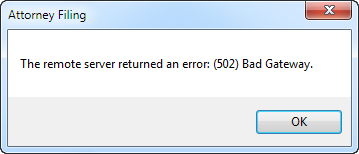
You don’t necessarily need to be a network guru to use Microsoft Network Monitor. I have used it more than a few times to troubleshoot client side applications that fail to connect to external resources for whatever reason. For example, a user unable to logon to a some external server, receiving the follow error: “The remote server returned an error: (502) Bade Gateway

7-25-2013 6-16-51 PM

I tried the site myself with Netmon capturing a trace and saw the remote server was trying to establish a secure connection through a port other than common 443:

SNAGHTML567f6d8

And here where printing from a remote app was failing to pass through our TMG proxy:

image

Read the rest of this entry »

Posted in Troubleshooting Tools | Tagged: | Leave a Comment »

Failure Connecting to Printer

Posted by William Diaz on July 9, 2013


I have only seen a handful of these previously and encountered another one recently, so with time permitting I decided to look at it more in-depth. The issue was that on one particular workstation, regardless of the account being used, we were unable to connect to a particular model of printer. Navigating to the printer server share, right-clicking the printer and selecting Connect resulted in the following error: “Connect to Printer. Windows cannot connect to the printer.

image

The details stated that the “Operation failed with error 0x00000057.” Looking up that status code was of no help, it simply states ERROR_INVALID_PARAMETER.

The error may also present itself as: “Printer driver was not installed. operation could not be completed (error 0x00000057).”

image

Initial troubleshooting involved deleting the printer and going into the Print Management console and selecting the related print drivers and deleting them. This requires admin permissions and you must stop and start the spooler to unhook any drivers hooked by the spooler process. This does two things, it purges the drivers from C:\Windows\System32\DriverStore\FileRepository and cleans the registry of the printer and print driver references. In this case, this failed to correct the problem.

Read the rest of this entry »

Posted in Troubleshooting, Troubleshooting Tools | Tagged: | 1 Comment »

Unable to Install, Uninstall or Update Java

Posted by William Diaz on July 9, 2013


I have run into this a few times. I suspect the issue was being caused by the method in which the original installation of the JRE client was being uninstalled. In our environment, we control the installation of removal of most software via a 3rd party utility. This means that in some cases our techs (or sometimes the user) will try to remove a product via Programs and Features but will not have complete permissions to undertake the process, which may end up only partially uninstalling the product, leaving fragments of it in the file system.

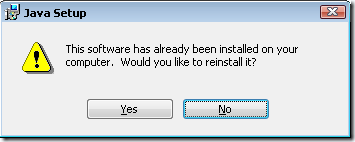
The problem often starts with the following warning": "Java Setup. This software has already been installed on your computer. Would you like to reinstall it?

image

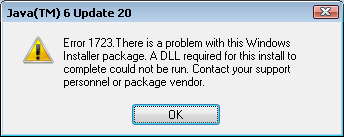
Selecting Yes results in the following error: “Error 1723. There is a problem with this Windows Installer package. A DLL required for this install to complete could not be run…”

image

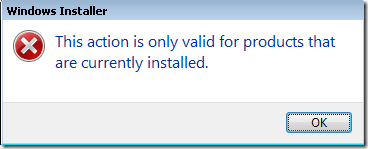
Sometimes this may be proceeded or followed by a Windows installer error: “This action is only valid for products that are currently installed.”
image

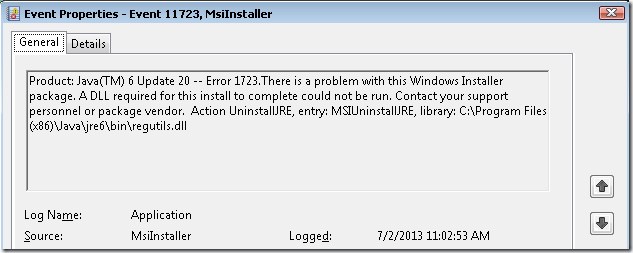
Looking at the details of the error in the Windows Application Event logs offers some details:
image

I can only assume regutils.dll is the module necessary for registering and unregistering the JRE client properly. Looking at that path, I can see that the Java programs folder is gone or the sub-folder for regutils.dll is empty. I am guessing that sometimes a technician comes along and decides to just delete the Java programs folder in desperation while trying to recover from a botched uninstall.

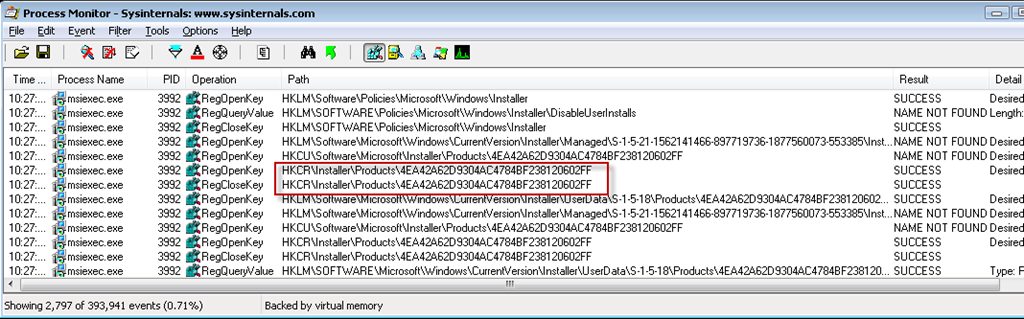
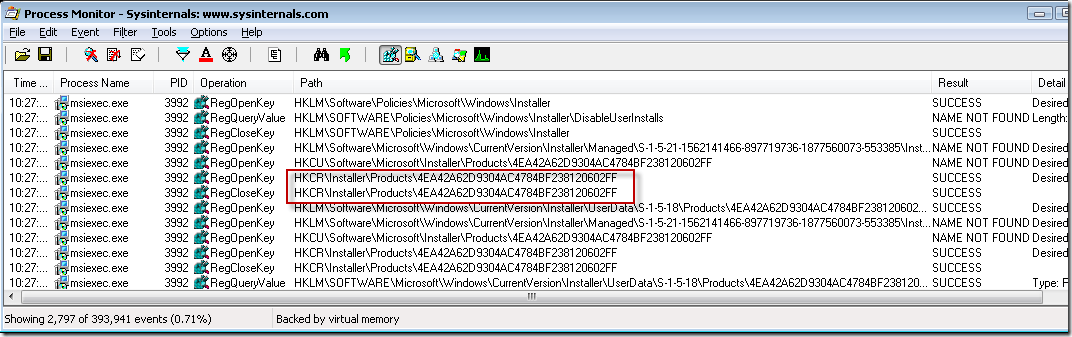
One way to work around this is to simply take this dll from a another workstation and copy it to or create the folder path in the error. For standalone computers, though, this may not be an option. I decided to take a quick look in the registry to see is I could identify the key that was still in place and preventing the complete removal or upgrade of the existing JRE using Process Monitor. I filtered the trace for the Java install-uninstall msiexec, registry only. After the trace was collected, I filtered further to include only “installer” in the path. After a few tries, I came to the culprit:
image

After deleting HKCR\Installer\Products\4EA42A62D9304AC4784BF238120602FF The Java JRE install proceeded normally.

I should mention that Microsoft offers another way to handle stubborn uninstalls: http://support.microsoft.com/mats/program_install_and_uninstall/, and upon reproducing the issue I can confirm it also works in properly cleaning up the residual registry key(s).

Posted in Troubleshooting | Leave a Comment »

Check Your IE Bitness

Posted by William Diaz on April 26, 2013


Not too long ago we began to see a rash of IE problems when trying to install or run various ActiveX controls and plugins. Often, there was no literal error, the ActiveX control would just try to install again after revisiting the page, often indicating that it was successfully installed, but then only fail to run. We would initially troubleshoot by running IE elevated because standard users could not install ActiveX controls. The odd thing was that this always resolved the issue temporarily, so long as we left that session of the browser opened. Once closed, the problem resumed. Eventually, after much head scratching, we realized that the affected users Internet Explorer pinned in the Taskbar was pointing to C:\Program Files\Internet Explorer but when we would troubleshoot, we were elevating from the proper C:\Program Files (x86)\Internet Explorer folder since we are a 64 bit shop now. The question still remain, though, how the IE shortcut pinned to the taskbar was getting its path changed to the 64 bit version of IE. Since most, if not all the users, were recent Windows 7 migrations, we are guessing something went funky in the task sequence.


UPDATE

Even after writing this it still didn’t occur to me that IE Bitness was again the issue when encountering a Java error in IE for a Citrix published app.
CitrixJavaIE

Manually logging into the server confirmed that Java was installed and working. It didn’t come to me that IE might be running in the wrong bitness until after I looked at the HKU\S-1-5-21…SID\Software\ key of the user profiles on the Citrix box and saw that the JavaSoft key was not being created. A script was used to launch the app and went something like this.

Option Explicit
Dim WSHShell, objNet, strusername, IE
Set WSHShell = WScript.CreateObject("WScript.Shell")
Set objNet = WScript.CreateObject("WScript.Network")

On Error Resume Next

Call openIE()

Sub openIE()
     Set IE = CreateObject("InternetExplorer.Application")
     ie.menubar=0
     ie.toolbar=1
     ie.Navigate “http://www.someplace.html”
     ie.visible=1
End Sub

The InternetExplorer.Application object in a 64 bit OS will launch the 64 bit version of IE since the OS will default to the 64 bit wscript engine. To work around this, force the 32 bit wscript engine:

Main()

Sub Main()
Force32bit()’Need to call IE 32Bit
    Dim objExplorer : Set IE = CreateObject("InternetExplorer.Application")
    IE.menubar=0
    IE.toolbar=0
    IE.Navigate “www.someplace.com”
    IE.visible=1
End Sub

Sub Force32bit()
     If InStr(UCase(WScript.FullName), "SYSTEM32") > 0 Then
          Dim objShell : Set objShell = CreateObject("WScript.Shell")
          objShell.CurrentDirectory = "C:\Windows\SysWOW64"
          objShell.Run "wscript.exe " & WScript.ScriptFullName, 1, False
          WScript.Quit
     End If
End Sub

Posted in Troubleshooting | Tagged: | Leave a Comment »

Random Workstation Hangs

Posted by William Diaz on April 26, 2013


A user recently complained to me of application hangs. After pressing her, it turns out the entire workstation was hanging randomly and after some time would return to normal. I often refer to these as “soft hangs”, a hang in which the workstation-OS eventually recovers from (opposite a “hard hang” in which the system has halted and needs to be restarted with manual “button-intervention”). Often, this is caused by an excessively large disk queue that needs to be handled or a processor hog. Looking at the Windows Event Viewer under the System logs, I noticed an error on the primary storage device. I sorted the logs by the Source and could see that this had been happening practically everyday. The error was reported as “The device, \Device\Ide\iaStor0\, did not respond within the timeout period.” with an Event ID of 9 and source of iaStor:

image

Furthermore, she had complained of the issue before with her previous workstation before it was swapped out for the current one so I also decided to look at her previous workstation and noted the same daily errors. Both workstations were of the same model. With that, I decided to setup Event Forwarding for this error and saw that ALL workstations of the same model were reporting the this error. Some quick research pointed me to a known issues with the Intel Array Storage Technology (aka Rapid Storage) and SSDs that do not support one of its features known as Link Power Management.

To resolve

  1. Go to HKLM\System\CurrentControlSet\Services\iaStor\Parameters\Portn, where n=the hard disk (often Port0 for the primary storage). If the key Portn does not exist, create it*.
  2. Create the following DWORDS with a value of 0: LPM, LPMDSTATE, DIPM.

Since we have hundreds of these, a group policy preference was used to target the PC model hard drives affected (via wmi query) and push the reg hack firm wide. Afterward applying, the errors went away.


*The existence of the Portn key depends on the driver version of the Intel Array Storage driver. Version 10 and higher does not require the existence of the keys and values to enable LPM, only to disable.

Posted in Troubleshooting | Tagged: | Leave a Comment »

A Failure To Print

Posted by William Diaz on April 16, 2013


We saw a rash of complaints in one of our offices where users were unable to print to any HP printers. They would contact the helpdesk, they would delete the printer and add it back again but the issue kept returning after the initial successful print. The was no error message but the print balloon in the notification area would not indicate a printed job was sent to the printer while at the same time the print icon appeared in the notification area showing 0 pending jobs in the print queue. In the past, I had seen this in isolated instances, and it can be resolved by

  • First removing the printer (or printers if they share the same print driver, .e.g. HP Universal Print Driver)
  • Stopping and restarting the print spooler (CMD > net stop spooler > net start spooler)
  • Opening the Print Management console (Control Panel > Administrative Tools)
  • Opening All Driver
  • Select the driver package for the problem printer > right-click Remove Driver Package. This has the effect of removing the print drivers from the Windows driver file repository (64 bit Windows – C:\Windows\System32\DriverStore\FileRepository) and deleting the registry key that’s holds the various values for the driver package (HKEY_LOCAL_MACHINE\SYSTEM\CurrentControlSet\Control\Print\Environments\Windows x64\Drivers\Version-3\HP Universal Printing PCL 5 (v5.4))
  • Reconnecting to the printer. This would download the print drivers from the print server to the file repository and install them locally into C:\Windows\System32\spool\drivers\x64.

To try and determine what was causing this to occur, I asked the local office tech to contact me when he encountered another user with the same issue so I could compare the drivers in spool\driver and the file repository folders on the problem workstation with those on a behaving workstation for the HP universal print driver package but everything looked identical. Next, I compared the registry key of the two workstations and spotted the problem.

On the problem workstation:

SNAGHTML6e02c8f

On the working workstation:

image

As a proof of concept, I deleted the data for the Dependent Files value, rebooted the workstation and was able to reproduce the issue. Manually importing the missing registry data then corrected. The other two values affected are Help File and Monitor. The why of why this is happening is not fully known but there is some further discussion about the issue here: http://social.technet.microsoft.com/Forums/en-US/winserverprint/thread/e2acb625-027d-47a9-b4a7-1616e270bcbc/


Update

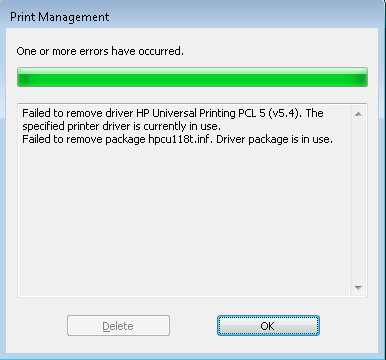
After seeing another rash of this outbreak in another office, I encountered issues trying to remove the HP Universal Printing PCL 5 (v5.4) package from the Print Management console:

 image

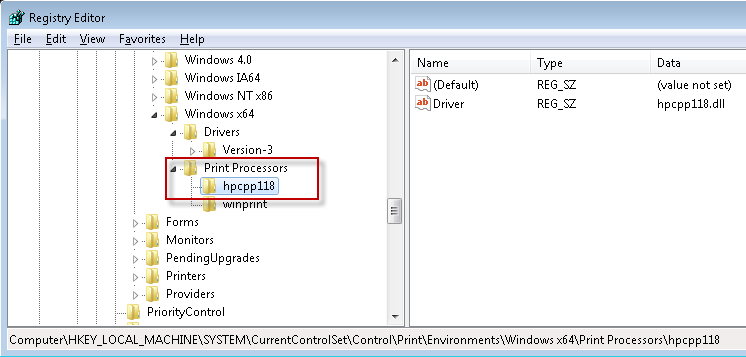
Not sure why, but the print spooler hooks one of the print driver files after it restarts. To remove the hook, got to HKEY_LOCAL_MACHINE\SYSTEM\CurrentControlSet\Control\Print\Environments\Windows x64\Print Processors\ and delete the key that corresponds to the print driver you are trying to remove, .e.g hpcpp118, stop and restart the print spooler, then remove the driver package from the Print Management Console.

image


Update

This should be resolved with KB3001232

Posted in Uncategorized | Tagged: | Leave a Comment »

Program Icons Shouldn’t Look Like System Folder Icons (and while you are at it, lets not name filenames with file extensions)

Posted by William Diaz on March 6, 2013


It confuses the users. Normal folder icon in Windows Explorer:
image

Then digging down into the folder the user encounters another folder:
image

Its described correctly as an Application but the average user is probably not going to distinguish the difference between a real Windows system folder icon and a program folder icon and completely ignore the description field telling them it is an application. And so they then try to open the folder and encounter:
image

Ack! Then the help desk wonders, “Ok, so missing config file somewhere, right?”. Nope, its right there, but it has been named to BillsArchive.exe. File extensions are turned off in Explorer and no one really pays any attention to the description (right?) so they don’t notice that the filename is really BillsArchive.exe.config.

By the way, the program icon folder looks almost exactly the same as a Windows XP system folder icon:
image
Bottom line is program icons shouldn’t look like system folder icons. This is also a great way for malware to execute itself by simply looking like some harmless folder named “Pictures”, or whatever.

Posted in Uncategorized | Leave a Comment »

A Perfmon View of Bad Blocks

Posted by William Diaz on March 6, 2013


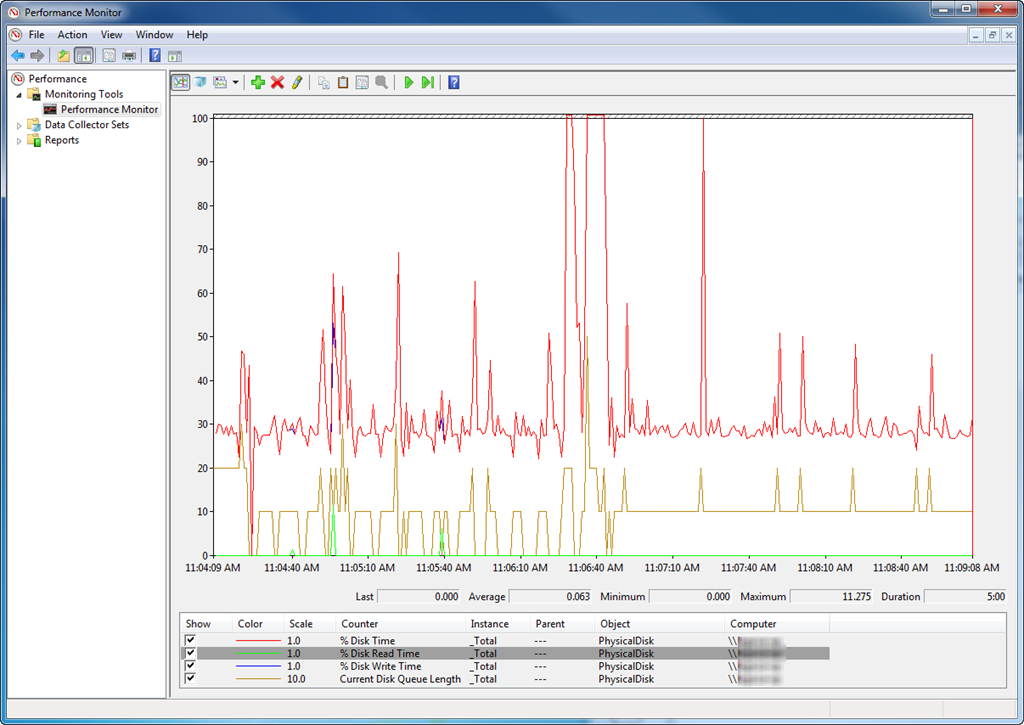
In the past week or so a couple workstations were brought to my attention in different offices that were exhibiting poor performance. Suspicious of disk bottlenecks, I remotely connected perfmon physical disk counters to both and saw a excessive time spent writing to the disk and the current disk queue length spiking when the workstations were logged on but idle. Here is a snapshot of both PCs:

SNAGHTMLd73c7e6

SNAGHTMLd76e6fa

Looking at the System event logs revealed numerous Errors with Source as disk and Event ID 7, otherwise known as bad blocks. On one of the problem workstations the print spooler kept on shutting down after starting it. If system files or program critical files are resident across these bad blocks on the disk, performance issues or otherwise abnormal behavior is bound to ensue. Run a Chkdsk to attempt to resolve.

Posted in Troubleshooting Tools | Tagged: | Leave a Comment »