Windows Explored

Everyday Windows Desktop Support, Advanced Troubleshooting & Other OS Tidbits

Enable Process & Service Crash Archiving in Vista/Win7

Posted by William Diaz on August 11, 2010


Windows Vista and 7, unlike Windows XP, do not come enabled with a post-mortem debugger out of the box . But you can enable crash dump archiving by editing the Windows registry.

  • Create a new key called LocalDumps in HKLM\Software\Microsoft\Windows\Windows Error Reporting (by default it points to %LOCALAPPDATA%\CrashDumps).
    • To change save location, create a new Expandable String Value called DumpFolder with a value of the desired path
    • A DWORD value called DumpCount with a value of decimal 10 will set the max number of dumps to save into this file at 10.
    • A new DWORD value called DumpType with value of 1 or 2 decides the type of dump (1 = minidump, 2 = fulldump).
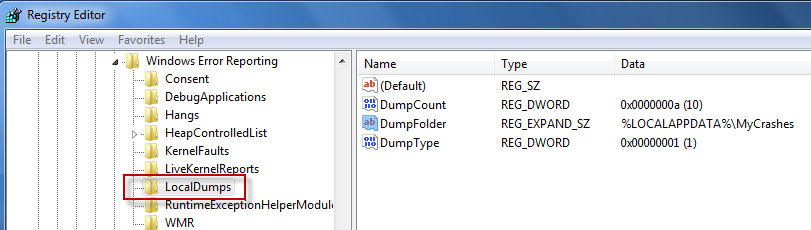
 

The crash dump will be created in \Users\UserName\AppData\Local. To change the destination, modify DumpFolder to the desired path.

Alternatively, if the app errors and the process remains running until the error message box is dismissed, you can use the Windows Task Manager to manually dump the process by right-clicking it and choosing Create Dump File.

See this MSDN article here for more details.

Posted in Inside Windows | Tagged: , | 3 Comments »

The Case of the Sluggish Email Message (Outlook HTML Gone Crazy)

Posted by William Diaz on August 5, 2010


Upon trying to move an email into our document management system in Outlook, the user reported the following error: The item could not be deleted, it was either moved or already deleted, or access was denied.” This was odd, because normally this error is seen when items are deleted from shared mailboxes, as this this Microsoft KB article explains. The folder she was trying to move it into was her own document store, which she had full access. Upon trying to move other items, the error was not encountered.

I asked the user to send me the message and at first glance there was nothing special about the email. It was composed of a few short paragraphs with no special formatting beside some text bolding. The user composed these messages on a weekly basis, sent them to herself and then would re-file them into the DMS.

I asked the user to open the message on her system, noticed it was very slow to open, and eventually caused Outlook to become unresponsive. After restarting Outlook and looking at the message in the message pane of the user I noticed it was 1MB in size. This was odd because there was no attachment.
image Read the rest of this entry »

Posted in Office, Troubleshooting | Tagged: , , | 1 Comment »

The Case of the Macro Security Warning

Posted by William Diaz on August 5, 2010


One of our users was being annoyed by the following macro security prompt when opening a PowerPoint presentation: “Security Warning … contains macros.”

It’s not uncommon to see this warning when opening any Office file that contains macros. However, in the case here, the presentation was a simple slide show that, as far as the author knew, contained no macros. I was asked to investigate. I quickly scanned through the slide show and could see no custom actions or anything else that would indicate a macro. In fact, no macros were listed in the macro window: Read the rest of this entry »

Posted in Office | Leave a Comment »

Change Analysis Diagnostic for Windows XP

Posted by William Diaz on August 5, 2010


This is a cool Microsoft utility that allows one to look at what has changed on a PC from a specified date. This comes in handy when you need to troubleshoot a system problem that may be the result of a new or recent app, driver, or update that was recently installed so you can see what has changed on the system since the problem started occurring. The interface is simple and easy enough to use, and when combined with other troubleshooting tools may help isolate the cause. You can read about it and download from here: http://support.microsoft.com/kb/924732.

Note, to run this with Service pack 3, you need to extract the files from self-extracting exe instead of running directly. You can do this by opening with WinZip or the another zip program. Open the scdiag folder and extract statechangediag.exe and scstyle.xls to a folder. Read the rest of this entry »

Posted in Troubleshooting Tools | Leave a Comment »

User Request – Create Custom Non-Tiling Email Stationary for Outlook

Posted by William Diaz on August 4, 2010


A somewhat odd request: the user needed to create a custom email background from an existing image. This is usually done by going into Tools > Options > Mail Format > Stationary Picker > New > Start with blank stationary and from here select Picture and browse to the image to be used as the background stationary (Outlook 2003). This creates an htm file in the C:\Documents and Settings\username\Application Data\Microsoft\Stationery folder.

The only problem with this is that the image will be tiled. And with smaller images there can be lots of tiling the larger the message is. To work around this, you can make the image larger but, in this case, the image was not high qaulity enough to scale it larger without introducing pixelization into the background image. So the request was to insert the image as background but not tile it.

So, to work around tiling, I edited the htm file created with notepad to introduce the following text into the <BODY> tag: style=”background-repeat:no-repeat“.

This is an example of an htm file created as stationary. The body tag is highlighted; the red text indicates the new tag to be inserted:

<!DOCTYPE HTML PUBLIC “-//W3C//DTD HTML 4.0 Transitional//EN”>
<HTML><HEAD><TITLE>Untitled Stationery</TITLE>
<META http-equiv=Content-Type content=”text/html; charset=windows-1252″>
<META content=”MSHTML 6.00.6000.17063″ name=GENERATOR></HEAD>
<
BODY
style=”FONT-SIZE: 10pt; COLOR: #000000; FONT-FAMILY: Arial; BACKGROUND-COLOR: #ffffff”
bgColor=#ffffff
background=”C:\Documents and Settings\Username\Winnt\stock-photo-girl-runs-on-sand-5199790.jpg”

style=”background-repeat:no-repeat”><FONT
face=Arial color=#000000 size=2>
<DIV>&nbsp;</DIV></FONT></BODY></HTML>

You can further modify to, for example, center the image in background by adding “background-position:top center”. In fact, you exempt all the mshtml-Outlook junk and do it from scratch:

<HTML>
<head>
</head>
</head>
<BODY background=”C:\Documents and Settings\Username\Winnt\stock-photo-girl-runs-on-sand-5199790.jpg” style=”background-repeat:no-repeat;background-position:top center”>
</BODY>
</HTML>

Posted in Uncategorized | Tagged: | Leave a Comment »

User Request – Count Outlook Attachments in Outlook

Posted by William Diaz on August 3, 2010


Here is an odd user request presented to one of our techs. The user wanted to be able to count the number of attachments in an email, especially those with many attachments. You can do all kinds of stuff using Visual Basic in MS Office and a quick Internet search revealed some simple VB code that would create macro in Outlook to count attachments

To do this, open the Visual Basic Editor from Tools > Macro > Visual Basic Editor. Right-click the Modules folder and insert a new module and copy and paste the following text into the editor window:

Sub CountAttachmentsMulti()

Set mySelect = Outlook.ActiveExplorer.Selection
For Each Item In mySelect
j = Item.Attachments.Count + j
I = I + 1
Next Item
MsgBox “Selected ” & I & ” messages with ” & j & ” attachements”

End Sub

Add the macro to the Outlook standard toolbar or create a new one. Do the same for open messages. Now you can select a message, a range of messages, or open a message and run the macro and get a neat dialog box:

Posted in Office | Tagged: | Leave a Comment »

Using Application Logs to Troubleshoot a Failed Web Meeting

Posted by William Diaz on August 3, 2010


Here is an example of using application logs for troubleshooting. In the case here, the user was unable to connect to a video meeting hosted across the web in an application called iLinc. After logging into the initial login page, the user was presented with the following prompt requesting further authentication:

Posted in Troubleshooting | Tagged: | Leave a Comment »

HP 1020 1022 Print Drivers Crashing the Print Spooler

Posted by William Diaz on July 21, 2010


We see numerous complaints about missing printers. This will happen when the Windows print spooler (spoolersv.exe) is not running and we often see this complaint with those setup with personal HP 1020/1022 printers. While attempting to print PDFs, or after printing PDFs, the print spooler is crashing. The drwtsn32.log and user.dmp files in C:\Documents and Settings\All Users\Application Data\Microsoft\Dr Watson all point to the same culprit, the HP ZSR.dll print driver.mHere is an excerpt from the drwtsn32.log: Read the rest of this entry »

Posted in Troubleshooting | Tagged: , , , | Leave a Comment »

Outlook 2007/2010 File Delete Quirk

Posted by William Diaz on July 20, 2010


I ran into this one when troubleshooting The Case of the Crashing Email with a different version of Outlook. I created a test folder to save the crashing email message attachments. When I was done, I went to delete the folder and received: “Error Deleting File or Folder. Cannot delete filename. It is being used by another person or program…”
Read the rest of this entry »

Posted in Troubleshooting, Troubleshooting Tools | Tagged: , | Leave a Comment »

Forcing a System Crash on a Unresponsive PC

Posted by William Diaz on July 20, 2010


This one comes in handy when a Windows based PC experiences a so-called “hard hang” and you need to force it to bug check and produce a dump for debug purposes. From the Windows registry:

  • For USB keyboards go to HKEY_LOCAL_MACHINE\System\CurrentControlSet\Services\kbdhid\Parameters, create a DWORD value named CrashOnCtrlScroll equal to 11
  • For PS/2 keyboards go to HKEY_LOCAL_MACHINE\System\CurrentControlSet\Services\i8042prt\Parameters, create a DWORD value named CrashOnCtrlScroll equal to 1

You will need to reboot afterwards. A crash can now be initiated by holding down the right CTRL key and pressing the Scroll Lock key twice. Read the rest of this entry »

Posted in Troubleshooting | Tagged: , , | 1 Comment »