Windows Explored

Everyday Windows Desktop Support, Advanced Troubleshooting & Other OS Tidbits

Archive for the ‘Troubleshooting’ Category

Forcing a System Crash on a Unresponsive PC

Posted by William Diaz on July 20, 2010


This one comes in handy when a Windows based PC experiences a so-called “hard hang” and you need to force it to bug check and produce a dump for debug purposes. From the Windows registry:

  • For USB keyboards go to HKEY_LOCAL_MACHINE\System\CurrentControlSet\Services\kbdhid\Parameters, create a DWORD value named CrashOnCtrlScroll equal to 11
  • For PS/2 keyboards go to HKEY_LOCAL_MACHINE\System\CurrentControlSet\Services\i8042prt\Parameters, create a DWORD value named CrashOnCtrlScroll equal to 1

You will need to reboot afterwards. A crash can now be initiated by holding down the right CTRL key and pressing the Scroll Lock key twice. Read the rest of this entry »

Posted in Troubleshooting | Tagged: , , | 1 Comment »

Advanced Malware Cleaning

Posted by William Diaz on July 18, 2010


This is an excellent webcast by Mark Russinovich on how to use various tools (mainly those from SysInternals) to detect and clean malware. You can find it here: http://technet.microsoft.com/en-us/sysinternals/gg618529

Posted in Troubleshooting, Troubleshooting Tools | Tagged: | Leave a Comment »

Using the Debug Diagnostic 1.1 Tool to Troubleshoot Application Crashes

Posted by William Diaz on July 18, 2010


In cases where the post-mortem default debugger, e.g. Dr Watson in XP, fails to capture a user mode dump of a crashing process or service, you need to be a bit proactive and attach to the crashing application. You can do this a number of ways, such as using ADPlus or WinDbg from the Windows Debugging Tools, but this may not be practical on a user’s workstation (big foot print, invasive, process does not run transparently). Also, the crash may be too random to recreate quickly or at will.

In these circumstances, Debug Diagnostics comes in very useful. It has a small foot print, runs as a Windows service, can be quickly setup via rules, and the GUI can then be closed and left to wait for the target process to crash. Afterwards, a dump can be retrieved from the system remotely, and impact on the user remains minimal. Additionally, Debug Diagnostics can also analyze the dump created and find a solution on-line.

Outlined is a basic setup, attaching Debug Diagnostics to crashing instances of Internet Explorer. In the example here, I am creating a crash rule for a specific process:

Posted in Troubleshooting, Troubleshooting Tools | Tagged: , , | 1 Comment »

“My Computer” Taking Too Long to Open

Posted by William Diaz on July 18, 2010


I have run into this a couple times on different workstation and thought I would share with you how the culprit was identified and resolved. The problem manifested itself as the “My Computer” the window getting hung after opening. The delay would range anywhere from 30 seconds to a couple minutes. The same would also happen for “Printers and Faxes” and “Scanners and Cameras”.

I started by connecting to the workstation Event Viewer remotely and saw a few instances of a WIA error: “The Windows Image Acquisition (WIA) service terminated unexpectedly…” I checked WIA service and saw it was stopped. Since the service does not necessarily need to be running if the devices are not in use, it didn’t really raise any eyebrows. However, an attempt was made to start the service, but it failed. Some quick research pointed to the possibility that the Windows Image Acquisition service was failing due to a driver issue with a connected image device.  I eventually came across this Microsoft KB article: Enable Logging of Wiadebug.log in Windows XP.

The information describes a method to enable WIA trace logging. The article points out that this can be used by developers for troubleshooting drivers during development, but I figured why not use it to troubleshoot the WIA service itself. Read the rest of this entry »

Posted in Troubleshooting | Tagged: , | Leave a Comment »

The Case of the Temporary Registry Profiles

Posted by William Diaz on July 9, 2010


After getting hooked on Mark Russinovich’s blogs, I came across this, an excellent read: http://blogs.technet.com/b/markrussinovich/archive/2009/08/10/3272210.aspx.

We ran into this issue ourselves and it had everyone stumped until I found this blog post. Demonstrates the power of Process Monitor and specifically the boot logging feature.

Posted in Troubleshooting, Troubleshooting Tools | Tagged: | 1 Comment »

Outlook Express Compact Messages Prompt

Posted by William Diaz on July 8, 2010


Every now and then someone would complain about this message appearing after logon: To free up disk space, Outlook Express can compact messages…”

The problem was that they failed to complain to the right person. Eventually, one of my co-workers encountered it and asked me to investigate. We thought it odd because we used Outlook, not Outlook Express. To quickly identify the culprit, I turned to Process Explorer from SysInternals and used the Find Window’s Process menu icon. Simply drag the crosshairs over the window in question and Process Explorer highlights the process. You can see below the process identified was WindowsSearch.exe: Read the rest of this entry »

Posted in Inside Windows, Troubleshooting | Tagged: | Leave a Comment »

The Case of the Crashing Email

Posted by William Diaz on July 7, 2010


One afternoon I had the luck of encountering a user who was experiencing random Outlook crashes while. As far as he was concerned, there didn’t seem to be any rhyme or reason to it. He would just be clicking through email messages and then, suddenly, he would encounter the following error (but not always):Inbox – Microsoft Outlook: OUTLOOK.EXE – Application Error – The exception unknown software exception (0x…) occurred in the application at location 0x…
Read the rest of this entry »

Posted in Troubleshooting | Tagged: , , , | 1 Comment »

Go Digging for the Exception

Posted by William Diaz on July 4, 2010


After moving to a new Internet Explorer based employee time management system, I started noticing a slew of reports coming in where IE was crashing when trying to access any of the menus within the browser. The error always presented itself as: “Microsoft Visual C++ Runtime Library. Runtime Error!..
122910_1941_AnotherCase1

Posted in Troubleshooting, Troubleshooting Tools | Tagged: , , , , | Leave a Comment »

.Net Cleanup & Setup Verification Tools

Posted by William Diaz on July 4, 2010


I have found a need to use these tools a few times in the past so I thought I would mention them.

The .NET Framework setup verification tool is designed to automatically perform a set of steps to verify the installation state of one or more versions of the .NET Framework on a computer.  It will verify the presence of files, directories, registry keys and values for the .NET Framework.  It will also verify that simple applications that use the .NET Framework can be run correctly.

Read about and obtain from here: http://blogs.msdn.com/b/astebner/archive/2008/10/13/8999004.aspx

The updated version of the cleanup tool contains options to clean up the .NET Framework 1.0, 1.1, 2.0, 3.0 and 3.5 separately and all versions simultaneously in a single step. The cleanup tool contains logic so that if it is run on an OS version that includes the .NET Framework as an OS component, it will not offer the option to clean it up. This means that running the cleanup tool on Windows XP Media Center Edition or Tablet PC Edition will not offer the option to clean up the .NET Framework 1.0, running it on Windows Server 2003 will not offer the option to clean up the .NET Framework 1.1 and running it on Windows Vista will not offer the option to clean up the .NET Framework 2.0 or the .NET Framework 3.0.

See here: http://blogs.msdn.com/b/astebner/archive/2006/05/30/611355.aspx

Posted in Troubleshooting, Troubleshooting Tools | Leave a Comment »

Identifying Unknown Hardware

Posted by William Diaz on July 4, 2010


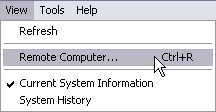
To see missing drivers for any hardware component just open the System Information utility from Start > Run and type msinfo32. You can also do this remotely with any computer within your network by using the View > Remote Computer option.

Expand the Components heading in the navigation tree and select Problem Devices: Read the rest of this entry »

Posted in Troubleshooting, Troubleshooting Tools | Tagged: | Leave a Comment »