Archive for the ‘Office’ Category
Posted by William Diaz on October 12, 2011
In technical support, there is a common knee-jerk reaction when something doesn’t work in Microsoft Office: run a repair of the product or reinstall it. My colleagues have probably spent several hours combined going through this step countless times. Often (often is 99% of time) this fails to resolve whatever issue they are encountering. Over the course of a few years of troubleshooting Office, a repair has only corrected an issue once ( or maybe twice). In our case, it’s the nature of the custom environment that is chock-full-o-add-ins. Other times it is some weird, unexplained element of a document, spreadsheet, or whatever that just doesn’t want to work. Those can be rather complex to figure out sometimes.
That being said, sometimes repairing MS Office fixes issues in areas you might not otherwise think. For example, I recently setup a small document library in SharePoint, but while trying to edit the files from Internet Explorer some of the tech workstations were reporting the following error: “Windows Internet Explorer – ‘Edit Document’ requires a Windows SharePoint Services-compatible application and Microsoft Internet Explorer 6.0 or greater.”
Read the rest of this entry »
Posted in Office, Troubleshooting Tools | Tagged: Internet Explorer, Office, Process Monitor | Leave a Comment »
Posted by William Diaz on September 1, 2011
Besides taking screen shots of the Outlook navigation pane, there is no built in way to print or output to a file a list of folders. However, you can work around this by creating a macro in Outlook using the Visual Basic editor.
In Outlook 2010:
- Enable the Developer tab by going to the File tab > Customize Ribbon.
- Check the Developer option under the right column and click OK.
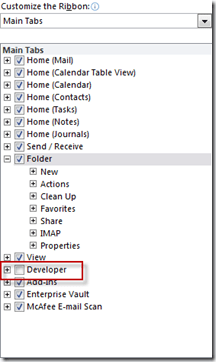
- The Developer tab is now part of the Outlook Ribbon.

- Select the Visual Basic button (or ALT+F11).
- Right-click the Module folder, then Insert > Module and name it.
- Copy and paste the code at the bottom of this post into the VBA Project window
or
Import the attached .bas file below by going to File > Import File
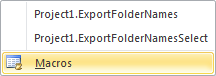
- Run the macro by clicking the Macro button. There are two options available, ExportFoldernames and ExportFolderNamesSelect:

The first one exports the currently selected folder and the second one allows you to specify a folder (or the entire mailbox). You can choose to structure or not to structure the output and a text file will be written to the desktop named outlookfolders.txt.
Read the rest of this entry »
Posted in Office | Tagged: Outlook, Printing | 2 Comments »
Posted by William Diaz on August 3, 2011
Before any basic crash analysis, I always turn to the Windows Event view to find signs of problem. In the case here, the problem manifested itself as Outlook crashing when the user opened a particular Outlook form. Looking at the Windows Event Viewer, we see an application event for Outlook:
Read the rest of this entry »
Posted in Office, Troubleshooting | Tagged: Crash, Outlook, WinDbg | Leave a Comment »
Posted by William Diaz on August 2, 2011
As more organizations start migrating toward Outlook 2010 and Windows 7, you are bound to start seeing complaints of the Windows Search Email Indexer being disabled:
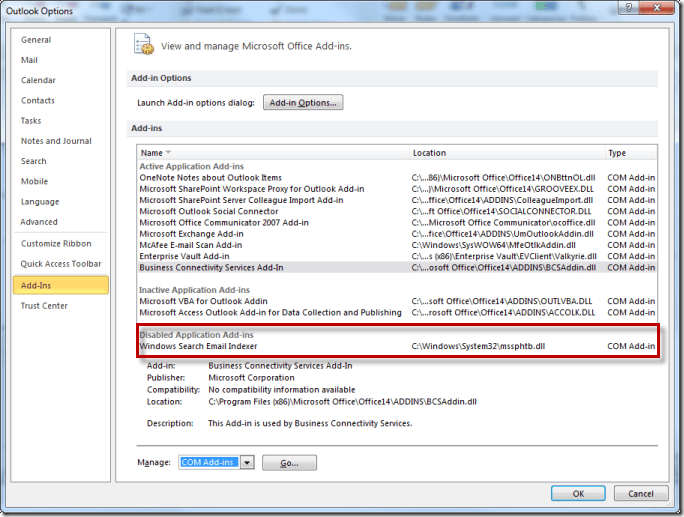
There is no shortage of misinformation on the Internet about the subject that explains how to enable this add-in and regain the missing search functionality. Ignore all of it. This is by design. Windows Search is already part of Vista and Windows 7, and there is nothing wrong with Outlook or Windows. See the details in this Microsoft KB article: http://support.microsoft.com/kb/2385524
Posted in Office | Tagged: Outlook | Leave a Comment »
Posted by William Diaz on May 6, 2011
Some Auto-Complete (.nk2 & .dat) facts: Read the rest of this entry »
Posted in Office | Tagged: Outlook | 3 Comments »
Posted by William Diaz on March 14, 2011
You may (or may not) have noticed that the local cached mailbox for Outlook, also known as the OST file, is larger than the Exchange mailbox size. There is no shortage of misinformation about this topic, some of it incorrectly attributing this to corruption1. For example, the mailbox seen here in Exchange is only 132 MBs:
Read the rest of this entry »
Posted in Office | Tagged: Exchange, Outlook | Leave a Comment »
Posted by William Diaz on February 4, 2011
After a certain amount of time troubleshooting Word issues (not document issues) in a large enterprise environment that uses several templates, macros, and other add-ins, one develops a troubleshooting drill. This normally involves isolating a problem to a startup template or add-in. We have a lot of them and they are always increasing. For Office Word 2003, you can find most of these in C:\Program Files\Microsoft Office\OFFICE11\STARTUP:
Read the rest of this entry »
Posted in Office | Tagged: Hang, Word | Leave a Comment »
Posted by William Diaz on February 4, 2011
Knowing what the Outlook 2003 .dat file do can often assist’s you with troubleshooting Outlook issues. The primary .dat files are: Read the rest of this entry »
Posted in Office | Tagged: Outlook | Leave a Comment »
Posted by William Diaz on December 28, 2010
It’s a mystery how some files get their file extensions changed or removed. I have no doubt that some users think that manually changing it makes it compatible with whatever program they want it to open in. We often get files that contain a .doc extension but fail to open in Word. Sometimes they are corrupted, sometimes they are in a newer version of Word, and sometimes they are not Word documents at all. When you run into these, the easiest way to determine what kind of file it is is to open it with Notepad (or any text reader for that matter) and look for readable text in the data. Here is an example:
Read the rest of this entry »
Posted in Office, Troubleshooting | Tagged: Word | Leave a Comment »




 Windows Explored