Windows Explored

Everyday Windows Desktop Support, Advanced Troubleshooting & Other OS Tidbits

Check Your IE Bitness

Posted by William Diaz on April 26, 2013


Not too long ago we began to see a rash of IE problems when trying to install or run various ActiveX controls and plugins. Often, there was no literal error, the ActiveX control would just try to install again after revisiting the page, often indicating that it was successfully installed, but then only fail to run. We would initially troubleshoot by running IE elevated because standard users could not install ActiveX controls. The odd thing was that this always resolved the issue temporarily, so long as we left that session of the browser opened. Once closed, the problem resumed. Eventually, after much head scratching, we realized that the affected users Internet Explorer pinned in the Taskbar was pointing to C:\Program Files\Internet Explorer but when we would troubleshoot, we were elevating from the proper C:\Program Files (x86)\Internet Explorer folder since we are a 64 bit shop now. The question still remain, though, how the IE shortcut pinned to the taskbar was getting its path changed to the 64 bit version of IE. Since most, if not all the users, were recent Windows 7 migrations, we are guessing something went funky in the task sequence.


UPDATE

Even after writing this it still didn’t occur to me that IE Bitness was again the issue when encountering a Java error in IE for a Citrix published app.
CitrixJavaIE

Manually logging into the server confirmed that Java was installed and working. It didn’t come to me that IE might be running in the wrong bitness until after I looked at the HKU\S-1-5-21…SID\Software\ key of the user profiles on the Citrix box and saw that the JavaSoft key was not being created. A script was used to launch the app and went something like this.

Option Explicit
Dim WSHShell, objNet, strusername, IE
Set WSHShell = WScript.CreateObject("WScript.Shell")
Set objNet = WScript.CreateObject("WScript.Network")

On Error Resume Next

Call openIE()

Sub openIE()
     Set IE = CreateObject("InternetExplorer.Application")
     ie.menubar=0
     ie.toolbar=1
     ie.Navigate “http://www.someplace.html”
     ie.visible=1
End Sub

The InternetExplorer.Application object in a 64 bit OS will launch the 64 bit version of IE since the OS will default to the 64 bit wscript engine. To work around this, force the 32 bit wscript engine:


Call openIE()

Sub openIE()
     Force32bit()
     Set IE = CreateObject("InternetExplorer.Application")
     ie.menubar=0
     ie.toolbar=1
     ie.Navigate “http://www.someplace.html”
     ie.visible=1
End Sub

Sub Force32bit()
     If InStr(UCase(WScript.FullName), "SYSTEM32") > 0 Then
          Dim objShell : Set objShell = CreateObject("WScript.Shell")
          objShell.CurrentDirectory = "C:\Windows\SysWOW64"
          objShell.Run "wscript.exe " & WScript.ScriptFullName, 1, False
          WScript.Quit
     End If
End Sub

Posted in Troubleshooting | Tagged: | Leave a Comment »

Random Workstation Hangs

Posted by William Diaz on April 26, 2013


A user recently complained to me of application hangs. After pressing her, it turns out the entire workstation was hanging randomly and after some time would return to normal. I often refer to these as “soft hangs”, a hang in which the workstation-OS eventually recovers from (opposite a “hard hang” in which the system has halted and needs to be restarted with manual “button-intervention”). Often, this is caused by an excessively large disk queue that needs to be handled or a processor hog. Looking at the Windows Event Viewer under the System logs, I noticed an error on the primary storage device. I sorted the logs by the Source and could see that this had been happening practically everyday. The error was reported as “The device, \Device\Ide\iaStor0\, did not respond within the timeout period.” with an Event ID of 9 and source of iaStor:

image

Furthermore, she had complained of the issue before with her previous workstation before it was swapped out for the current one so I also decided to look at her previous workstation and noted the same daily errors. Both workstations were of the same model. With that, I decided to setup Event Forwarding for this error and saw that ALL workstations of the same model were reporting the this error. Some quick research pointed me to a known issues with the Intel Array Storage Technology (aka Rapid Storage) and SSDs that do not support one of its features known as Link Power Management.

To resolve

  1. Go to HKLM\System\CurrentControlSet\Services\iaStor\Parameters\Portn, where n=the hard disk (often Port0 for the primary storage). If the key Portn does not exist, create it*.
  2. Create the following DWORDS with a value of 0: LPM, LPMDSTATE, DIPM.

Since we have hundreds of these, a group policy preference was used to target the PC model affected and push the reg hack firm wide. Afterward applying, the errors went away.


*The existence of the Portn key depends on the driver version of the Intel Array Storage driver. Version 10 and higher does not require the existence of the keys and values to enable LPM, only to disable.

Posted in Troubleshooting | Tagged: | Leave a Comment »

A Failure To Print

Posted by William Diaz on April 16, 2013


We saw a rash of complaints in one of our offices where users were unable to print to any HP printers. They would contact the helpdesk, they would delete the printer and add it back again but the issue kept returning after the initial successful print. The was no error message but the print balloon in the notification area would not indicate a printed job was sent to the printer while at the same time the print icon appeared in the notification area showing 0 pending jobs in the print queue. In the past, I had seen this in isolated instances, and it can be resolved by

  • First removing the printer (or printers if they share the same print driver, .e.g. HP Universal Print Driver)
  • Stopping and restarting the print spooler (CMD > net stop spooler > net start spooler)
  • Opening the Print Management console (Control Panel > Administrative Tools)
  • Opening All Driver
  • Select the driver package for the problem printer > right-click Remove Driver Package. This has the effect of removing the print drivers from the Windows driver file repository (64 bit Windows – C:\Windows\System32\DriverStore\FileRepository) and deleting the registry key that’s holds the various values for the driver package (HKEY_LOCAL_MACHINE\SYSTEM\CurrentControlSet\Control\Print\Environments\Windows x64\Drivers\Version-3\HP Universal Printing PCL 5 (v5.4))
  • Reconnecting to the printer. This would download the print drivers from the print server to the file repository and install them locally into C:\Windows\System32\spool\drivers\x64.

To try and determine what was causing this to occur, I asked the local office tech to contact me when he encountered another user with the same issue so I could compare the drivers in spool\driver and the file repository folders on the problem workstation with those on a behaving workstation for the HP universal print driver package but everything looked identical. Next, I compared the registry key of the two workstations and spotted the problem.

On the problem workstation:

SNAGHTML6e02c8f

On the working workstation:

image

As a proof of concept, I deleted the data for the Dependent Files value, rebooted the workstation and was able to reproduce the issue. Manually importing the missing registry data then corrected. The other two values affected are Help File and Monitor. The why of why this is happening is not fully known but there is some further discussion about the issue here: http://social.technet.microsoft.com/Forums/en-US/winserverprint/thread/e2acb625-027d-47a9-b4a7-1616e270bcbc/


Update

After seeing another rash of this outbreak in another office, I encountered issues trying to remove the HP Universal Printing PCL 5 (v5.4) package from the Print Management console:

 image

Not sure why, but the print spooler hooks one of the print driver files after it restarts. To remove the hook, got to HKEY_LOCAL_MACHINE\SYSTEM\CurrentControlSet\Control\Print\Environments\Windows x64\Print Processors\ and delete the key that corresponds to the print driver you are trying to remove, .e.g hpcpp118, stop and restart the print spooler, then remove the driver package from the Print Management Console.

image

Posted in Uncategorized | Tagged: | Leave a Comment »

Program Icons Shouldn’t Look Like System Folder Icons (and while you are at it, lets not name filenames with file extensions)

Posted by William Diaz on March 6, 2013


It confuses the users. Normal folder icon in Windows Explorer:
image

Then digging down into the folder the user encounters another folder:
image

Its described correctly as an Application but the average user is probably not going to distinguish the difference between a real Windows system folder icon and a program folder icon and completely ignore the description field telling them it is an application. And so they then try to open the folder and encounter:
image

Ack! Then the help desk wonders, “Ok, so missing config file somewhere, right?”. Nope, its right there, but it has been named to BillsArchive.exe. File extensions are turned off in Explorer and no one really pays any attention to the description (right?) so they don’t notice that the filename is really BillsArchive.exe.config.

By the way, the program icon folder looks almost exactly the same as a Windows XP system folder icon:
image
Bottom line is program icons shouldn’t look like system folder icons. This is also a great way for malware to execute itself by simply looking like some harmless folder named “Pictures”, or whatever.

Posted in Uncategorized | Leave a Comment »

A Perfmon View of Bad Blocks

Posted by William Diaz on March 6, 2013


In the past week or so a couple workstations were brought to my attention in different offices that were exhibiting poor performance. Suspicious of disk bottlenecks, I remotely connected perfmon physical disk counters to both and saw a excessive time spent writing to the disk and the current disk queue length spiking when the workstations were logged on but idle. Here is a snapshot of both PCs:

SNAGHTMLd73c7e6

SNAGHTMLd76e6fa

Looking at the System event logs revealed numerous Errors with Source as disk and Event ID 7, otherwise known as bad blocks. On one of the problem workstations the print spooler kept on shutting down after starting it. If system files or program critical files are resident across these bad blocks on the disk, performance issues or otherwise abnormal behavior is bound to ensue. Run a Chkdsk to attempt to resolve.

Posted in Troubleshooting Tools | Tagged: | Leave a Comment »

My Work Desktop

Posted by William Diaz on February 8, 2013


Pretty tidy, I say:

SAM_1884

Five Windows workstation, and, yes (dread), that’s a Mac on the right. I don’t care for it. Yes, that’s Mr. Lebowski (the Dude) above monitor number 2. Above number 4 is the immortal Toshiro Mifune (Sanjuro).

Moving to the cubicle wall are some other immortal greats:

SAM_1886

From left to right: Christopher Walken from Balls of Fury, Christoph Waltz from Inglorious Basterds, Big Brother from 1984 (he is always watching), Sugar from No Country for Old Men (by far the best villain ever), Cpt. James T Kirk (evil Kirk episode top), Walken again (ages gracefully), Michael Fassbender, also from the Basterds, Heston and the Apes from Planet of the Apes, Richard Burton from 1984 (there are five of him), and more Samurai Mifune.

Of course, reading material:

SAM_1891

Haven’t gotten around to Windows Internals Part II yet. English Ales are the best. BJ’s is great, too. Beer!

Posted in Uncategorized | 2 Comments »

Vague Errors and No, You Can’t Be An Admin on Your Workstation

Posted by William Diaz on February 8, 2013


In real estate, its all about location, location, location. In today’s Windows workplace environment its all about security, security, security. Legacy apps present challenges because they want to do things that are not going to work in our environment. For example, this vague error when our user is trying to run an app:
image

Not a lot to go on but our helpdesk was able to get to work by running the app in an elevated state and I knew then that this app obviously wasn’t designed with security in mind. No doubt, the app was trying to modify one or more of its files that was in a location that was locked down by the secure Windows 7 file system. The user wanted to be admin to workaround it. “Sorry, but we can’t give you that kinda juice.” But we could likely change the security permissions on the file and grant Users the right to modify it … assuming that was the case. Taking a look with Process Monitor, I ran the app, set a filter for Access Denied on the file system and got the following:
image

Yep, legacy apps don’t care much for putting stuff inside C:\Windows, but this is bad practice today because standard user accounts will not have the necessary privileges to create and modify any files placed here. The workaround in this case (because the user insists they really need this app) was to change the security permissions of the files the app was trying to write to to give Users Modify permissions:

image

I wish they were all this easy.

Posted in Troubleshooting | Leave a Comment »

TEMP Profiles vs Username.domain Profiles

Posted by William Diaz on February 7, 2013


There is often confusion between the two. But knowing what each profile type means is an important step in understanding what is going wrong with the profile.

TEMP profiles

These are often created when the local profile and the roaming profile are not the same. For example, a user logs on to their normal workstation and as the local profile is compared against the roaming profile, some file is missing, or some folder or file security rights in either of the profiles have been modified that do not allow it to be read or written so that both the profiles cannot be merged. An example of mismatching profile can be found here.

Another cause of TEMP profiles is when a local profile file is opened (or gets “hooked”) by some system or application process before logon or during logon, preventing, for example, ntuser.dat from opening. An example of this can be found here; and you can also recreate this by remotely opening a handle to the ntuser.dat of any user profile by using the remote Registry > Load Hive in regedit and then trying to log on as that person on the workstation which you loaded their hive. I was both victim and the offender in this example here. In both these cases TEMP profiles protect the integrity of the local profile.

And finally, TEMP profiles are also created when the local user profile folder is renamed or removed but the registry profile remains intact. A registry profile on the affected system means the user has at some point logged on to that workstation but Windows cannot locate the folder profile defined in the ProfileImagePath string of the registry profile (more on that below).

Posted in Inside Windows | Leave a Comment »

Unable to Install (only some) ActiveX Controls

Posted by William Diaz on February 7, 2013


So, we had just validated our latest Windows 7 image and were looking forward to start rolling it out to the next batch of offices. Everything had seemed fine in testing until we hit a little snafu when a user complained that they were unable to access on online training tutorial that required the use of an ActiveX plug-in. Instead of asking the the user to install or run the ActiveX control, it redirected the user to a manual join method, which also failed. The manual join method was just another means of delivering the ActiveX control as a file that could be executed.

I was asked to look and was able to reproduce. This was odd because none of our previous Win 7 images exhibited the problem with this site, which validated that it was not a website issue. I also tested with another page that I knew contained an ActiveX control and was still unable to download the control. The file simply never made it to the system. Actually, I began to suspect that the fact that both sites were internal might be the issue because I was able to go out to the Internet and run a ActiveX test at http://www.pcpitstop.com/testax.asp and also buy visiting Adobe and running an install of Flash Player. So the question was why were some ActiveX controls downloading and others not?

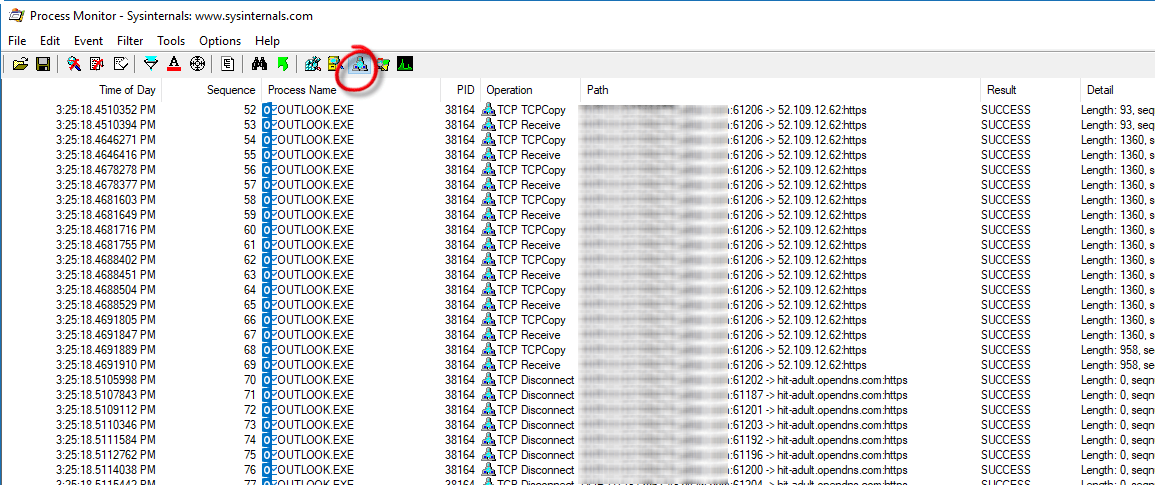
the answer came the next morning when I realized that both ActiveX controls that could not be downloaded were coming from https, secure sites. I didn’t quite recall the setting or where it was (I knew I had come across this in the old WinXP days of Outlook when some users were unable to download calendar appointment files via https hyperlinks in emails) but I knew I could find it with a quick Process Monitor trace and the search phrase “SSL”.

image

The second hit provided my answer in HKCU\Software\Microsoft\Windows\CurrentVersion\Internet Settings\DisableCachingOfSSLpages. The value was set to 1, which meant it was enabled. The UI setting actually resides in the IE Internet Options Panel under the Advanced tab, Do not save encrypted pages to disk:

SNAGHTML6d5bd2a

When checked, IE will not save files from secure sites to the computer.

As for how it got there, we suspect a Windows update may have enabled it at some point as the new image included several updates that the old image did not. As far as enforcing the setting via group policy to make sure it would not be enabled, this can be found under User Configuration > Admin Templates > Windows Components > Internet Explorer > Internet Control Panel > Advanced Page. This will create a new DWORD with a value of 0 in HKEY_CURRENT_USER\Software\Policies\Microsoft\Windows\CurrentVersion\Internet Settings.

Posted in Troubleshooting | Tagged: | Leave a Comment »

IE 9 Reset Deletes Favorites?

Posted by William Diaz on December 13, 2012


While speaking with a user a few days ago, she mentioned she called the help desk to try and resolve an IE issue and the technician decided to run a reset of IE. After restarting IE, she noticed her favorites had gone missing. To confirm, I fired up one of firm imaged Windows 7 PCs and was able to reproduce. This was a surprise to me because I had never seen this behavior in our old XP environment (we are still relatively new to the Windows 7 platform). Microsoft even clearly states that a reset should preserve favorites in this Microsoft article:

Settings and items that are maintained

  • Favorites

  • Feeds and Web Slices

  • Content Advisor settings

  • Pre-approved ActiveX controls

  • Temporary Internet file (cache) path settings

  • Certificate information

  • Internet Programs (e‑mail, instant messenger, and other programs associated with Internet use)

  • Internet connection, proxy, and VPN settings

  • Default web browser setting

  • Toolbars are not restored

Not surprisingly, I could not reproduce this issue on my non-firm imaged “vanilla” Windows 7 workstation. To find the cause, I turned to Process Monitor and ran a trace of IE when I selected the Reset button in the Advanced tab of Internet Options. The trace was over 20k operations and I had no idea what I was looking for. Looking at the operations on the .lnk as they got deleted (CloseFile operation) was not going to tell me why the links were getting deleted. A file summary might help, however. My guess was that IE was reading a file somewhere to decide how to handle some of reset parameters. To quickly get a list of files, I used Tools > File summary and quickly saw what IE was performing most of its read operations on:

image

I navigated to C:\Program Files (x86)\Internet Explorer\CUSTOM and opened the INSTALL.INS file. I scanned the text file and spotted a suspect: FavoritesDelete=0x708F

image

Sure this was the cause, I deleted that line, opened IE, imported a few links, ran the Reset in IE again, closed, opened, and saw this time the IE Favorites were not deleted. Some quick research shows that the custom.ins file is deployed when the Internet Explorer Admin Kit is used to customize settings when IE is installed.

Another clue would be the log created after the IE Reset was done as it writes the changes in the brndlog.txt file (number 3 in the file summary image above):

image
image

Posted in Troubleshooting | Tagged: , | Leave a Comment »

 
Follow

Get every new post delivered to your Inbox.